Storing Photo2Video HEVC archives in Apple Photos, Files, iCloud Drive or SSD: building a safe 3-2-1 workflow
Every archive video created by Photo2Video Archive embeds its photo manifest—names, dates and Live Photo pairings—directly inside the MP4 file itself and saves it to Apple Photos. That self-contained design makes it easy to copy verified archive MP4s to Apple Files, iCloud Drive or an external SSD as extra copies, provided you understand how Decompression reads from Apple Photos and where the byte-exact originals package lives.
1. What travels inside the MP4 file—and what stays in the app folder
Understanding two separate artifacts prevents every cross-device surprise. First, the verified HEVC MP4 archive video saved in Apple Photos carries its embedded manifest inside the video file itself; move or copy that unmodified MP4 to Files, iCloud Drive, a Mac or an external SSD, put it back into Apple Photos on any iPhone or iPad with Photo2Video Archive, and the app recognizes it and exports full-resolution frames.
Second, the byte-exact originals package is stored separately in Photo2Video Archive’s own documents folder on the device that created the archive. Copying the MP4 video does NOT copy that local originals package.
| Artifact | Default location | Portable across devices? | What it restores |
|---|---|---|---|
| HEVC MP4 Archive Video + Embedded Manifest | Saved in Apple Photos | Yes — keep MP4 unmodified; open from Apple Photos in the app | Full-resolution decoded frames (lossy HEVC) |
| Local Originals Package | App’s own documents folder on creating device | No — stays on creating device & removed if app is deleted | Byte-exact original files, names, dates & Live Photo videos |
| Independent Master Backup (recommended) | External SSD, NAS, Mac or cloud | Yes — standard camera files | Untouched original HEIC / JPEG / RAW files |
2. Comparing destinations for storing copies of your archive MP4s
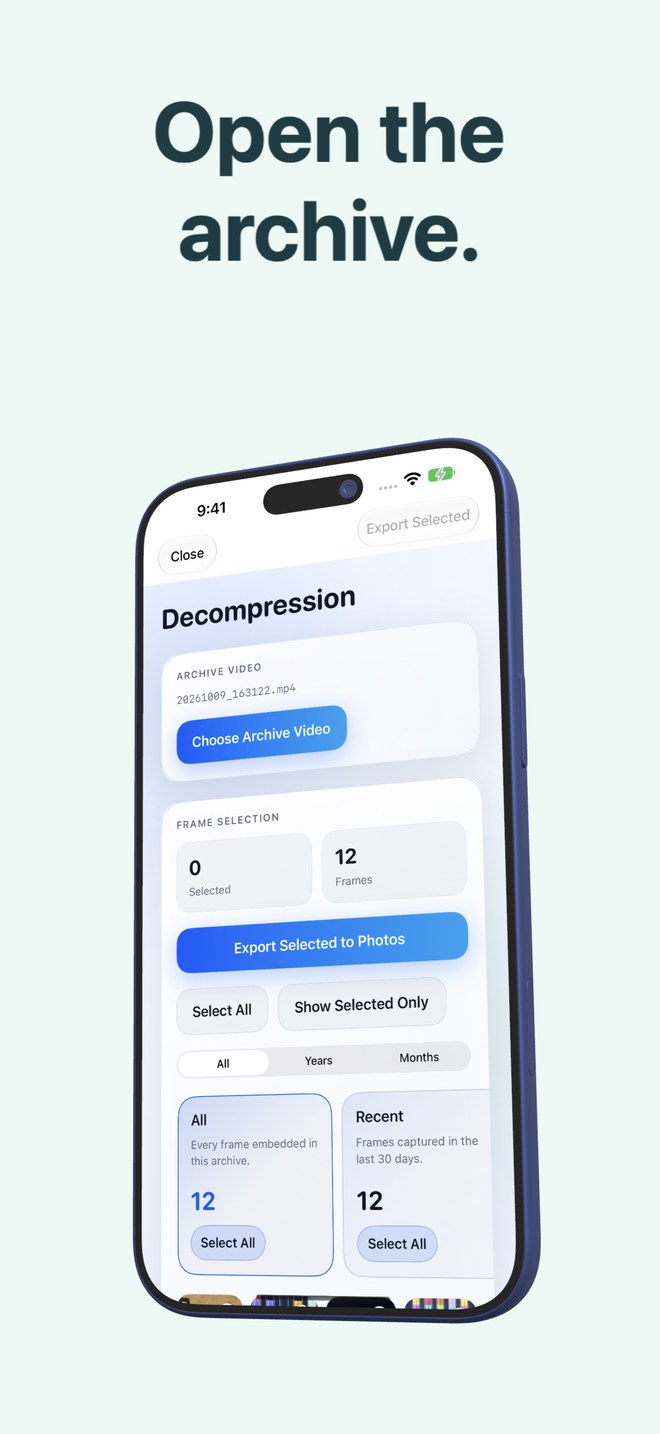
Note one operational rule when moving an archive MP4 out of Apple Photos into Apple Files or an external SSD to free even more Camera Roll space: Photo2Video Archive’s Decompression picker reads archive videos from Apple Photos. Whenever you want to restore frames from an externally stored archive MP4 later, simply save that unmodified MP4 back into Apple Photos and open Decompression.
| Destination | Modifies MP4 bytes? | Off-device disaster protection | How to export frames later |
|---|---|---|---|
| Keep in Apple Photos (local / iCloud Photos) | No — ready immediately | Yes if iCloud Photos syncs the video | Open Decompression directly in Photo2Video Archive |
| Apple Files (iCloud Drive folder) | No — binary file copy | Yes, synced to iCloud Drive quota | Save MP4 back to Apple Photos → open Decompression |
| External USB-C SSD / Mac folder | No — binary file copy | Yes, 100% offline copy at home | Import/AirDrop MP4 back to Apple Photos → open Decompression |
| WhatsApp / Telegram / social chat (avoid!) | Yes — re-encodes video! | Unsafe — strips manifest & ruins quality | Never send archive MP4s through chat compressors |
3. Applying the classic 3-2-1 backup rule on iPhone
For important photography, follow the 3-2-1 habit: three copies on two media types with one copy off-site—keeping untouched camera originals on at least your external SSD and/or cloud, while using Photo2Video Archive MP4s for compact, organized everyday access.
| Copy | What to store | Why |
|---|---|---|
| Copy 1 — On your iPhone (Apple Photos) | Verified Photo2Video Archive MP4s (+ recent favorite originals) | Compact, offline frame browsing & export anywhere |
| Copy 2 — At home on USB-C SSD or Mac | Unmodified original camera files + copy of archive MP4s | Lossless byte-exact hardware recovery |
| Copy 3 — Off-site (cloud or second drive) | Encrypted/cloud backup of irreplaceable originals & archives | Survives theft, loss or house damage |
Why must I never send a Photo2Video Archive MP4 over WhatsApp or Messenger to move it?
Messaging apps transcode videos aggressively, which both degrades frame quality and strips the embedded archive manifest required for Photo2Video Archive to recognize and unpack the archive. Use AirDrop, Apple Files, cable transfer or unmodified cloud file storage instead.
Can Photo2Video Archive open an archive video directly from the Files app without saving to Photos?
Decompression reads recognized archive videos saved in Apple Photos—if you stored an archive MP4 in Files or on an SSD, tap Save Video to put it back in Photos first, then open Decompression.
If I copy the archive video to my iPad, why does it export frames instead of byte-exact originals?
Because the MP4 carries the HEVC frames and manifest, whereas the byte-exact originals package stays in the app’s local storage on the device that created the archive.
What should I verify before deleting an archive video from Apple Photos after copying it to an SSD?
Copy the MP4 back from the SSD onto a test device, open it in Photo2Video Archive, and export a sample frame to prove the copied file wasn’t truncated—and never delete your last copy of an archive video!