How to Compress Thousands of Old iPhone Photos Into an Offline HEVC Archive Without Losing Order
Zipping thousands of old photos on an iPhone makes them impossible to browse visually in Apple Photos, while standard video slideshows discard the frame index needed to extract individual pictures later. Photo2Video Archive encodes selected local photos as frames inside a verified HEVC MP4 container with an embedded manifest—completely offline on iOS 26+.
How an indexed HEVC archive differs from a ZIP file or slideshow
Modern iPhones include hardware-accelerated HEVC (H.265) video encoders designed to compress sequences of high-resolution frames efficiently. Photo2Video Archive places one selected photo per video frame and embeds an archive map inside the video file metadata.
Because the resulting MP4 is saved straight into Apple Photos, you can still scrub through it visually while keeping the ability to open that video in Photo2Video Archive and export specific frames.
| Container Format | Browsable in Apple Photos? | Frame-by-Frame Restore Index? | Fidelity Note |
|---|---|---|---|
| Photo2Video HEVC MP4 + Local Package | Yes — plays and scrubs in Photos | Yes — embedded manifest maps every photo frame | Lossy HEVC frame export; byte-exact from local app package |
| ZIP archive in Apple Files | No — requires decompressing first | Preserves filenames only | Lossless, but invisible inside your Photos timeline |
| Standard slideshow video export | Yes — plays as a normal video | No — multiple frames per photo with transitions | Lossy and cannot automatically extract individual photos |
Step-by-step: pack a large photo batch offline
Organizing archives by trip, year, or topic (such as "2024 Receipts & Whiteboards" or "Summer Road Trip Bursts") makes restoration much simpler than dumping 10,000 unrelated images into a single file.
- Open Photo2Video Archive on your iPhone or iPad and grant access to the local photos you want to pack.
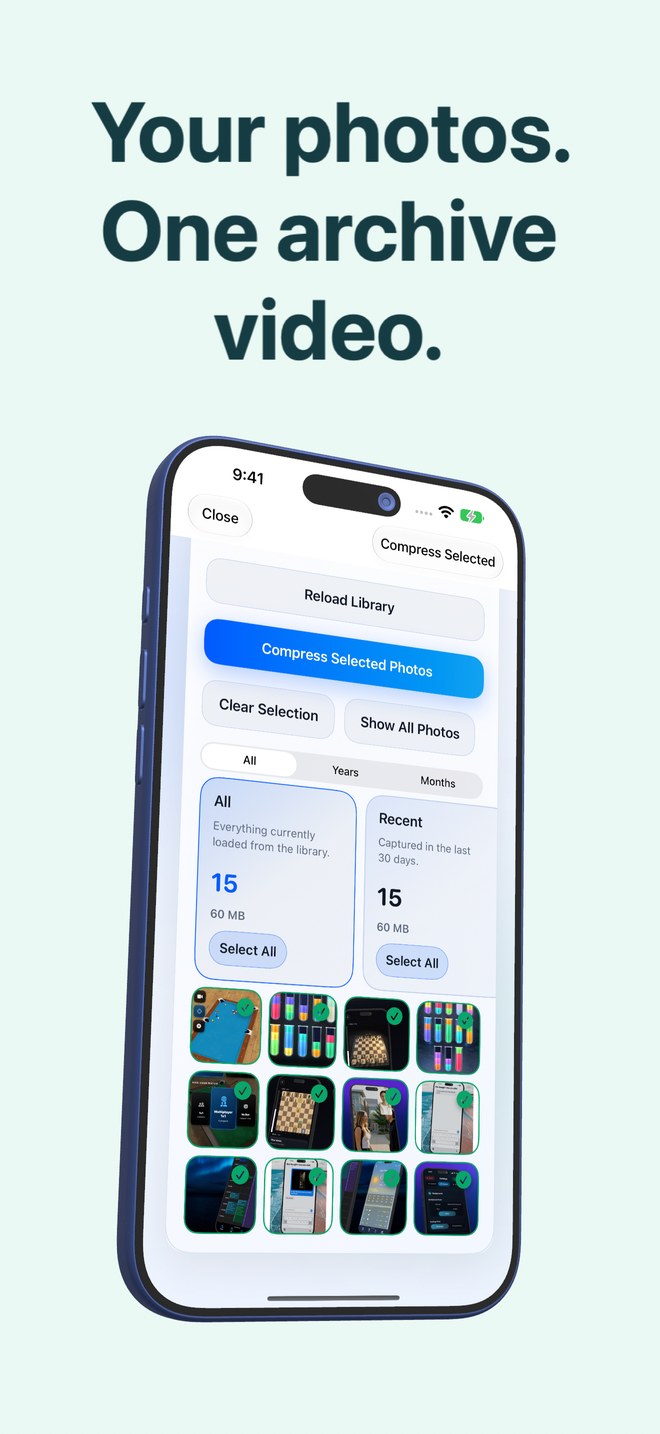
- Select your batch in the gallery picker; the app lists only photos stored fully on your device so encoding works 100% offline.
- Start the archive creation pass and wait while the app encodes the HEVC video and runs an automatic verification check.
- Review the storage comparison screen showing original size, HEVC video size, and potential Photos library difference.
- Tap Keep Originals while you test your first archive in the Restore tab and export two or three sample images to verify quality.
Understand lossy HEVC frames vs byte-exact local packages
HEVC video compression is lossy. While exported frames retain full pixel dimensions, fine grain and exact file bytes change during video encoding. Photo2Video Archive also retains a local originals package inside the app's storage on the creating device for byte-exact restoration—keep an independent backup of irreplaceable family or professional photos before deleting library originals.
Does encoding thousands of photos require an internet connection?
No. Selection, HEVC hardware encoding, verification, and restoration all run locally on your iPhone or iPad with zero server uploads.
Why should I tap Keep Originals on my first archive?
Keeping originals lets you open the newly created archive in the Restore tab, export sample frames, and confirm the workflow meets your quality expectations before removing anything from Apple Photos.
What happens if I uninstall Photo2Video Archive later?
Uninstalling the app removes the local originals packages stored inside the app's sandbox. Archive MP4 videos saved in Apple Photos remain in your library.